MQTT Explorer is a widely used open-source GUI client for inspecting MQTT traffic. Many of the features developers value most in MQTT Explorer, including topic tree visualization, publish and subscribe workflows, and message inspection, are already available natively in the Cedalo MQTT Platform. For professional Mosquitto setups, that means teams can work in one environment and one UI instead of relying on a separate third-party desktop tool.
MQTT Explorer: Key takeaways
- MQTT Explorer is an open-source GUI client for inspecting MQTT traffic in development and test environments.
- MQTT Explorer visualizes MQTT topic trees in real time and supports publish, subscribe, and message inspection workflows.
- MQTT Explorer is useful for validating topic structures, tracing message flows, and debugging retained messages or wildcard subscriptions.
- For professional Mosquitto environments, Cedalo combines MQTT visibility, centralized monitoring, and operational control in one platform UI.
What is MQTT Explorer?
MQTT Explorer is a free, open-source MQTT client with a graphical interface, developed by Thomas Nordquist. It runs on Windows, macOS, and Linux, giving engineers a real-time view of MQTT topics active on a broker.
The tool organizes incoming messages in a collapsible topic tree, displays payload history per topic, and lets users publish messages directly from the interface. These are exactly the kinds of features teams often look for when they need visibility into broker activity. In Cedalo-based Mosquitto environments, the same core workflows can already be handled within the platform UI, which reduces the need for an additional third-party client in professional setups.
Get MQTT visibility and broker control in one platform
Cedalo combines topic visibility, message inspection, and broker management in one UI, so professional Mosquitto environments do not have to rely on separate third-party tools.
How do you download and install MQTT Explorer?
MQTT Explorer is available for all major desktop operating systems. The official download can be found at mqtt-explorer.com; the source code is hosted on the MQTT Explorer GitHub repository.
Supported platforms:
- Windows: download the
.exeinstaller and run it directly. - macOS: download the
.dmgfile and drag it into your Applications folder. - Linux: download the
.AppImagefile, make it executable (chmod +x), and run it.
No server setup or configuration file is required. After installation, MQTT Explorer launches directly and prompts you to set up a connection.
Does MQTT Explorer run in Docker?
MQTT Explorer is primarily an Electron-based desktop application and also offers a browser mode. An official Docker image is available for browser-based use cases. For many users, the native desktop installer remains the simplest starting point.
System requirements: MQTT Explorer is available for Windows, macOS, and Linux desktop environments. Check the current download page or release notes for the latest platform-specific requirements.
How to connect MQTT Explorer to a broker
MQTT Explorer stores named connection profiles, so you configure a broker once and reuse the connection. The setup covers host, port, protocol, and optional security settings.
Step-by-step: setting up a broker connection
- Open the Connections dialog on the MQTT Explorer start screen.
- Enter a connection name to identify this profile (e.g., “Local Mosquitto Dev”).
- Set the host to your broker’s IP address or hostname (e.g., localhost or 192.168.1.100).
- Set the port to match your broker configuration. Typical defaults are 1883 for MQTT, 8883 for TLS, and 9001 for WebSocket, depending on your broker setup.
- Choose the protocol:
mqtt://for standard TCP,ws://for WebSocket, or their TLS equivalents (mqtts://,wss://). - Add credentials if your broker requires authentication by entering a username and password.
- Click “Connect” to establish the session.
MQTT Explorer immediately subscribes to # (all topics) and populates the topic tree with any retained or live messages present on the broker.
Connection parameter reference
| Parameter | Default | Notes |
|---|---|---|
| Protocol | mqtt:// | Use mqtts:// for TLS, ws:// or wss:// for WebSocket |
| Port | 1883 | 8883 for TLS, 9001 for WebSocket |
| Client ID | Auto-generated | Set manually if the broker enforces unique client IDs |
| Username / Password | Empty | Required if authentication is active on the broker |
| QoS | 0 (subscription) | Raise to 1 or 2 for guaranteed delivery |
| TLS / CA certificate | None | Upload your CA cert for TLS-secured connections |
How to connect MQTT Explorer to Mosquitto
A local Mosquitto broker with default settings connects without credentials: host localhost, port 1883, protocol mqtt://. Click “Connect” and the topic tree fills as soon as any client publishes.
For a Mosquitto setup with authentication enabled, add the username and password that match an entry in your password_file. If Mosquitto runs TLS, switch to mqtts://, set port 8883, and upload the CA certificate used to sign the broker’s server certificate.
How to configure TLS in MQTT Explorer
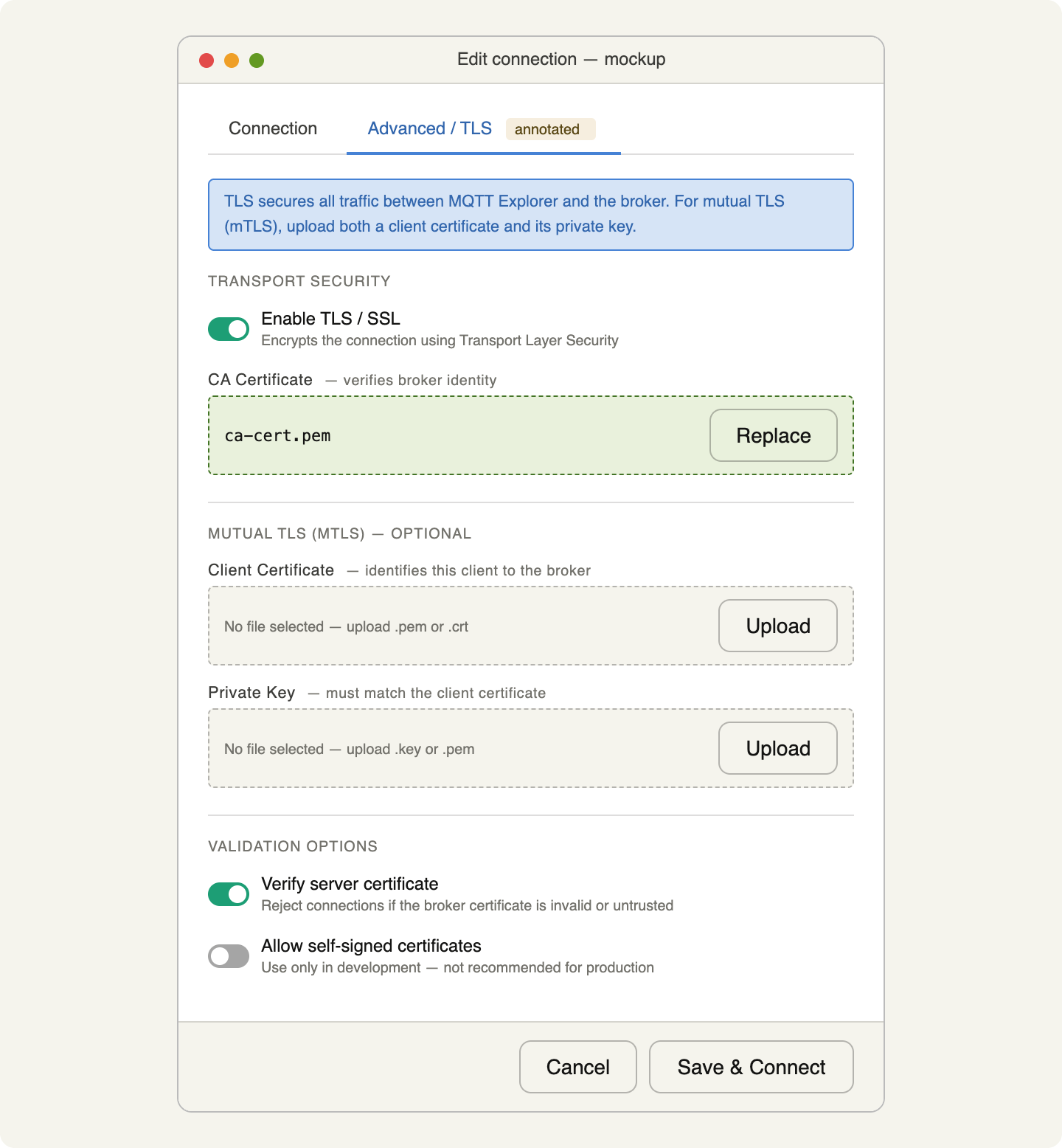
TLS configuration sits in the “Advanced” section of the connection dialog. Upload the CA certificate as a .pem file. For mutual TLS (mTLS), upload a client certificate and its private key in addition. Once saved, MQTT Explorer handles the TLS handshake automatically on every reconnect.
How to use MQTT Explorer: core features explained
After connecting to a broker, MQTT Explorer loads the full topic tree in the left panel. Each node represents one topic level. Clicking a node reveals the message history, the current payload, and a graph of numeric values over time.
For developers already working with Cedalo and Mosquitto, these workflows are not limited to a separate desktop client. Topic visibility, message inspection, and operational oversight can be handled within the platform UI, which is especially useful when teams want to avoid switching between tools as setups move from development into production.
How to subscribe to topics in MQTT Explorer
MQTT Explorer subscribes to # (all topics) by default on connect. You narrow the scope by editing the subscription list in the connection settings before connecting or by adding explicit subscriptions from the UI.
In production-oriented Cedalo environments, publish and subscribe workflows do not have to depend on a separate third-party client. The platform already provides built-in visibility into broker activity, which helps teams keep exploration, validation, and operations in one place.
Wildcards in MQTT topic subscriptions:
| Wildcard | Scope | Example |
|---|---|---|
+ | One topic level | factory/+/temperature matches factory/line1/temperature and factory/line2/temperature |
# | All levels below | factory/# matches every topic under factory/ |
Using + keeps the topic tree focused on specific device classes and avoids pulling in unrelated messages. On a busy broker, a broad # subscription produces thousands of messages per second, which makes the interface harder to read.
How to publish messages with MQTT Explorer
The publish panel sits in the bottom right of the interface. To send a message:
- Enter the target topic in the “Topic” field.
- Select the payload format: JSON, plain text, Base64, or XML.
- Type or paste the payload.
- Choose the QoS level (0, 1, or 2).
- Toggle “Retain” if the broker should hold the message for new subscribers.
- Click “Publish”.
MQTT Explorer validates JSON payloads automatically and highlights syntax errors before sending. That makes it a reliable tool for testing how downstream subscribers parse structured data.
How does MQTT Explorer display retained messages?
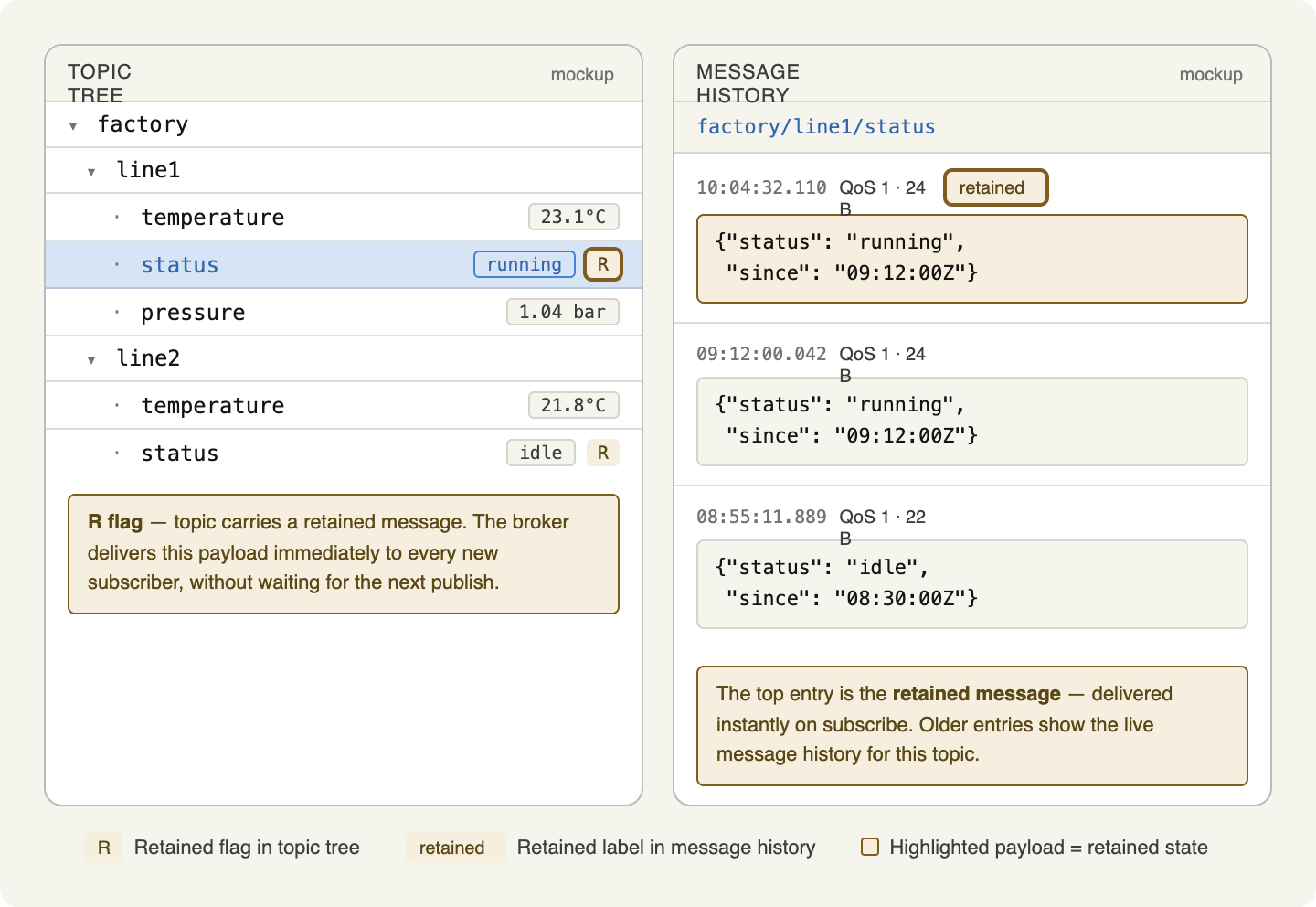
Retained messages are payloads that the broker stores per topic and delivers immediately to any new subscriber. MQTT Explorer marks retained messages with a visible label in the message history view. This lets you check which topics carry retained state and what value they currently hold, without waiting for the next live publish.
How to use MQTT Explorer for debugging
MQTT Explorer’s debugging workflow centers on three features: message history, diff view, and payload filtering.
Message history stores recent payloads per topic and lets you scroll back through changes. That reveals whether a sensor sends consistent values or introduces unexpected variations.
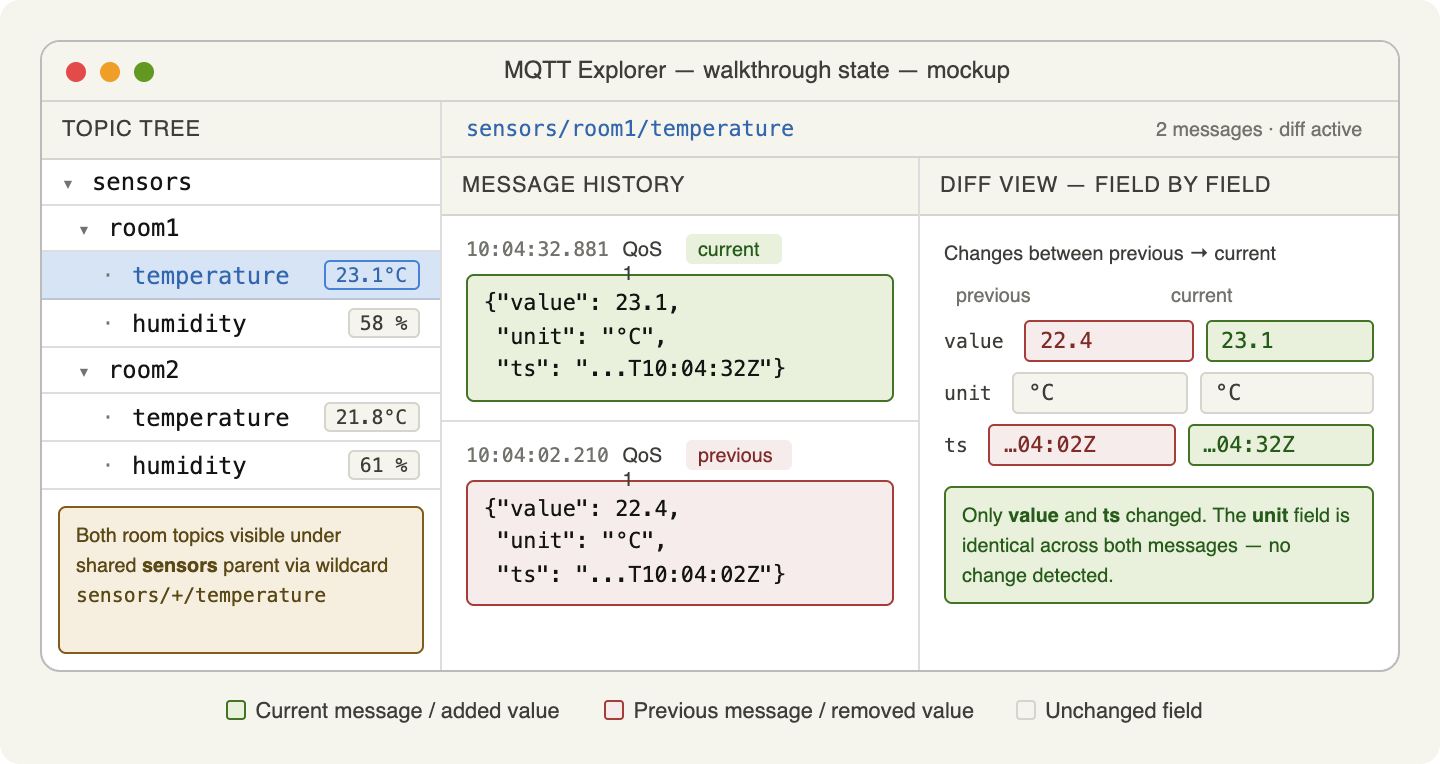
Diff view compares consecutive payloads and highlights what changed between two messages. For JSON payloads, the diff is field-level: you see exactly which key changed and from what value to what.
Filtering lets you type a string into the search bar above the topic tree to display matching topics only. On brokers with hundreds of active topics, that cuts the visible set to the ones relevant to your current task.
MQTT Explorer tutorial: a practical walkthrough
This walkthrough uses a local Mosquitto broker and simulates a temperature sensor publishing to sensors/room1/temperature.
Step 1: Connect to the broker
Open MQTT Explorer, create a new connection with host localhost, port 1883, and protocol mqtt://. Click Connect. The topic tree loads. If no messages are active yet, the tree stays empty.
Step 2: Subscribe to the sensor topic
In the connection settings, replace the default # subscription with sensors/#. This limits the topic tree to sensor data. Reconnect to apply the filter.
Step 3: Publish a test message
In the publish panel, set the topic to sensors/room1/temperature, select JSON as the format, and enter:
{"value": 22.4, "unit": "°C", "timestamp": "2025-03-01T10:00:00Z"}Set QoS to 1 and click Publish. The topic sensors/room1/temperature appears in the tree immediately, and the history panel shows the payload with a timestamp.
Step 4: Simulate a value change and use diff view
Change the value to 23.1 and publish again. Click the topic node and open the history view. Select the two messages and activate diff mode. MQTT Explorer highlights that the value field changed from 22.4 to 23.1. The rest of the payload stays identical.
Step 5: Add a wildcard subscription to monitor multiple rooms
Add a second subscription: sensors/+/temperature. Publish a message to sensors/room2/temperature. Both room topics appear in the tree under the shared sensors parent, and you compare their values side by side.
MQTT Explorer and Sparkplug B: what do you need to know?
Sparkplug B is a specification built on top of MQTT that defines a standardized payload format and state management model for industrial devices. It uses Google Protocol Buffers (Protobuf) for encoding, which means raw payloads appear as binary data in standard MQTT clients.
MQTT Explorer may show limited support for Sparkplug B payload handling depending on the version in use. Because Sparkplug B uses Protobuf, payload rendering and readability can vary by version and setup, so this behavior should be verified against the specific release being used.
For engineers working with Sparkplug B, a practical workflow with MQTT Explorer can look like this:
- Use MQTT Explorer to confirm that devices publish to the expected Sparkplug topic structure, such as
spBv1.0/groupId/DDATA/edgeNodeId/deviceId. - Verify that messages arrive at the expected intervals by watching the message history timestamps.
- Check payload rendering behavior against the exact MQTT Explorer version in use. If detailed payload decoding is not available or not sufficient for your use case, use a dedicated Sparkplug B or Protobuf-aware tool for deeper inspection.
MQTT Explorer remains useful for checking connectivity and topic structure in Sparkplug B environments, but payload decoding capabilities should be validated against the version deployed.
When does MQTT Explorer reach its limits?
MQTT Explorer works well for individual developers testing broker setups, verifying topic structures, or tracing specific message flows during development. The limitations become relevant when requirements shift from local debugging to production operations across teams, sites, and broker instances.
That is the point at which an integrated platform becomes more valuable than a standalone desktop client. In Cedalo-based Mosquitto setups, teams can keep visualization, broker access, monitoring, and operational control in one environment instead of adding a separate third-party tool for day-to-day visibility.
What MQTT Explorer does not cover
- Multi-broker oversight: MQTT Explorer connects to one broker at a time. Teams running multiple broker instances across sites or environments have no consolidated view.
- Access control and user management: the tool has no functionality for managing broker users, permissions, or certificates. Those settings live in the broker itself and require separate tooling.
- Alerting and anomaly detection: there are no threshold-based alerts or trend analysis features. Operators cannot set notifications when a topic goes silent or a payload falls outside an expected range.
- Audit trails: MQTT Explorer keeps no persistent log of message history beyond the current session. Production environments in regulated industries need durable, searchable audit records.
- High message volumes: when brokers process thousands of messages per second, the interface becomes difficult to read and resource-intensive on the desktop machine.
Which tool fits which use case?
| Use case | MQTT Explorer | Dedicated broker management |
|---|---|---|
| Development and test debugging | Fits well | Often more than needed |
| Topic structure validation | Fits well | Also possible, but typically slower |
| Production monitoring | Limited suitability | Typically the better fit |
| Multi-broker environments | Limited | Common capability |
| User and access management | Not included | Often integrated |
| Compliance and audit logging | Not included | Often built in |
The right tool depends on where you are in the development and deployment cycle. MQTT Explorer covers the early stages. The guide on the best MQTT tools gives a broader overview of available clients and when each fits. Production-grade broker management requires a platform that keeps running regardless of whether a developer has a laptop open.
Centralized control across brokers, messages, and sites
Production MQTT environments often demand more than a desktop debugging client. In many cases, teams need topic visibility, publish and subscribe workflows, message inspection, persistent monitoring across broker nodes, role-based access control, audit logs, and a clustering layer designed to support stable communication under production load, all from a centralized interface across sites.
With Cedalo, the operational features many users associate with MQTT Explorer do not have to live in a separate tool. Visualization, topic-tree-based inspection, and broker interaction are available alongside monitoring, security, and management capabilities in one environment.
Your advantages with Cedalo:
- Native visibility into broker activity, topics, and message flows from one Management Center.
- Built-in operational workflows that reduce the need for a separate third-party desktop client.
- Enterprise security with role-based user management, centralized certificate management, and audit trail features for regulated environments.
- High availability through clustering and automated failover, helping maintain message flow when individual nodes fail.
- Integrations with technologies such as Kafka, InfluxDB, and selected cloud and industrial data services, helping turn MQTT data into actionable insights across your stack.
Take full control of your MQTT infrastructure
Cedalo combines topic visibility, broker interaction, monitoring, and security in one platform UI for professional Mosquitto teams, without relying on separate third-party tools.
MQTT Explorer: Frequently Asked Questions
Does MQTT Explorer support MQTT 5.0?
MQTT Explorer supports modern MQTT protocol versions, including MQTT 3.1.1 and MQTT 5.0 in current releases. The exact set of MQTT 5.0 features exposed in the user interface can vary by version, so the protocol settings should be checked against the release you are using. For most debugging tasks, the selected protocol version should match the version supported by your broker.
Can MQTT Explorer handle multiple broker connections simultaneously?
MQTT Explorer manages one active broker connection at a time. Switching between brokers requires disconnecting first, though saved connection profiles make that process fast. Teams that need a persistent, parallel view across multiple brokers require a dedicated management platform rather than a single-session desktop client.
What payload formats does MQTT Explorer decode automatically?
MQTT Explorer automatically detects and formats JSON payloads with syntax highlighting. Plain text, Base64, and XML can be displayed without additional configuration. The way binary payloads are rendered may vary by payload type and MQTT Explorer version, so Protobuf-based content should be validated against the exact version in use.
How does MQTT Explorer work with the Cedalo MQTT Platform?
MQTT Explorer can connect to Cedalo-managed brokers using standard MQTT TCP or WebSocket listeners. At the same time, Cedalo already provides native visibility into topic structures, broker activity, and operational workflows within its own platform UI. For many professional Mosquitto environments, that means a separate third-party client may still be useful for isolated debugging tasks, but is not required for day-to-day operational visibility.
Is MQTT Explorer suitable for testing Cedalo’s enterprise features like clustering or RBAC?
MQTT Explorer tests message flow and topic access from a client perspective, which makes it useful for validating whether RBAC rules grant or deny the expected permissions. Cluster-level metrics, node health, and session distribution are not visible in MQTT Explorer. Those require the Cedalo Management Center’s broker-side observability.
How do you reset or clear the topic tree in MQTT Explorer?
Disconnecting from the broker and reconnecting clears the in-memory topic tree. MQTT Explorer does not persist topic state between sessions, so a fresh connection always starts with a clean view. Retained messages repopulate the tree immediately after reconnect, since the broker delivers them automatically to new subscribers.